Our journal app is in pre-release. If you notice a problem, please contact us.
Home › Free tools › Daily Loss Guard: free daily loss limit indicator for MT4/MT5
Free tool for MT4/MT5 · Tiltnote Daily Loss Guard
Daily Loss Guard: free daily loss limit indicator for MT4/MT5
A free indicator that puts a small panel in the corner of your chart showing how much you are down today and how much is left before the daily loss limit you set. At 80% of the limit it turns yellow; at the limit it turns red and shows a pop-up. Useful if you want to notice early, before a bad day gets worse, or if you trade a prop firm challenge with a daily drawdown rule.
It only shows and notifies. It places no orders, closes nothing and does not stop you from trading. How large your limit is, is up to you. At a prop firm, your firm’s own dashboard is the official number; this tool is an early-warning aid and its figures can differ.
Free. No sign-up
Shows and notifies only. Never opens or closes trades
Tip: before you add it, decide one thing you will do when it turns red, such as “close the platform for the day”. Each notice (yellow and red) appears once a day at most, and nothing appears while the platform is closed.
What it does
Reading the panel
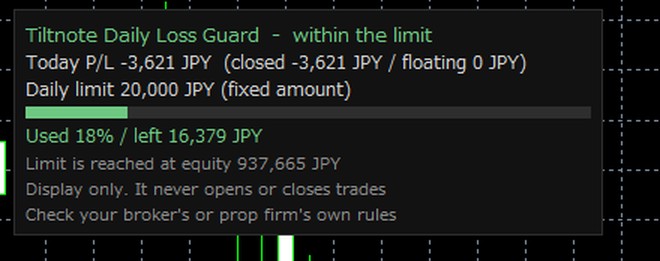
The first line is the state (within the limit, near the limit, limit reached). Below it: today’s P/L (closed and floating), your daily limit, how much of it is used and what is left, and the equity level at which the limit is reached. The colored bar shows how much of the limit is used. “Limit is reached at equity …” means the panel turns red when your account equity (balance plus floating P/L) falls to that amount. By default the day starts at 5 p.m. New York time, not at midnight, so a loss late at night may still count toward the previous day.
Example on a demo account in JPY (today’s P/L −3,621 JPY, limit set to 20,000 JPY). It works the same in USD or any account currency
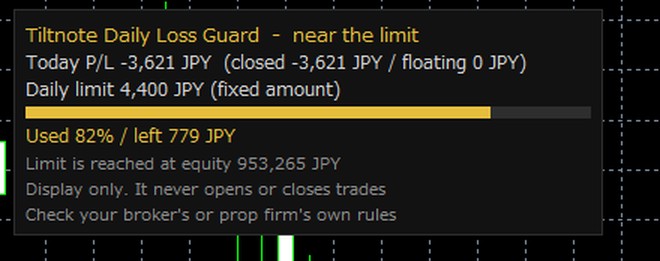
Yellow at 80% of the limit
When today’s loss reaches 80% of your limit (you can change the percentage), the text and bar turn yellow and it says “near the limit”. With the notice on, a pop-up and a sound tell you too.
For illustration: the same P/L with the limit lowered to 4,400 JPY (82% used)
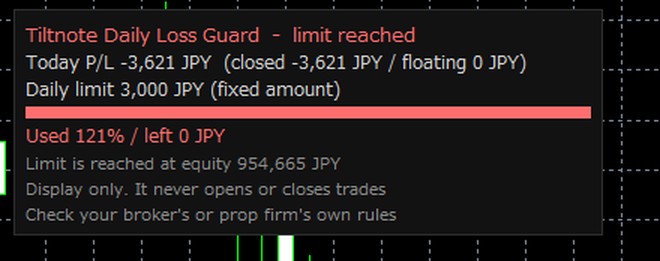
Red at the limit
When equity falls to the “limit is reached at equity” level, it turns red, says “limit reached” and shows a pop-up. Each notice (yellow and red) appears at most once a day. It does not stop trading.
For illustration: the same P/L with the limit lowered to 3,000 JPY (121% used)
Max drawdown (optional)
Like a prop firm’s max drawdown, it can also show the room left to an overall loss limit (off by default). Choose static (the starting balance minus a set % of it) or trailing (the highest balance so far minus the same % of the starting balance). If the starting balance is left at 0, the first deposit in the history is used. Some firms trail the highest equity instead of the highest balance.
Day start, deposits and withdrawals
The day can start at 5 p.m. New York time (the default), at midnight on your broker’s server clock, or at a custom hour fixed to Japan time (UTC+9; mainly for users in Japan). Deposits and withdrawals made today are not counted as P/L; they are added to or taken from the base amount instead.
New to this? The words on the panel
Indicator
A tool you add to an MT4/MT5 chart to show information. In MetaTrader, indicators cannot place orders.
Closed P/L
The total profit or loss of trades you closed today, including swaps and commissions.
Floating P/L
The profit or loss of positions that are still open, at the current price. It changes as the price moves.
Today P/L
Closed P/L plus floating P/L. Deposits and withdrawals are not included.
Balance and equity
Balance counts only closed trades. Equity is the balance plus floating P/L.
Day start
When “today” begins. By default it is 5 p.m. New York time (22:00 UTC, or 21:00 UTC during US daylight saving time).
Download
Most people need just one file: the ready-to-use version (.ex5 for MT5, .ex4 for MT4). The source code (.mq5/.mq4) is for anyone who wants to read it or change it. Not sure which platform you have? Look at the name at the very top of the window, or open Help → About.
Version 1.00 · Developer: Tiltnote Okumura (奥村) · Your browser may show a warning about these files. .ex5/.ex4 files run only inside MetaTrader; they are not programs you install on Windows (.exe). Please check that you downloaded them from this site (tiltnote.com), where we share these files. Copies from other places may differ from the originals.
Download the file for your platform above (.ex5 for MT5, .ex4 for MT4). Downloaded files are usually in your Downloads folder.
In MT5 (or MT4), click File → Open Data Folder.
Copy the downloaded file and paste it into the folder MQL5 (MQL4 for MT4) → Indicators in the folder that opened.
Back in the platform, in the Navigator window, right-click Indicators (Custom Indicators in MT4) → Refresh. No restart needed. If you can’t see the Navigator, open it from View → Navigator.
Drag Tiltnote_DailyLossGuard (Tiltnote_DailyLossGuard_MT4 in MT4) onto a chart. On the Inputs tab of the window that opens, change the limit to your own amount (see “Just two fields” below), then click OK. You are done when the panel appears in the top-left corner of the chart. Indicators don’t need the Algo Trading button. In MT4, if it says the loaded history starts after the day start, right-click the Account History tab at the bottom and choose All History.
If it does not appear, check: (1) the file type matches your platform (.ex5 for MT5, .ex4 for MT4), (2) the file is in the Indicators folder (not Experts or another folder), (3) you right-clicked in the Navigator and chose Refresh. It has been tested with MT4/MT5 for Windows. To remove it, right-click the chart and open the indicator list (Ctrl+I), then remove it there. Trying it on a demo account first is a good way to see how it behaves.
Settings (setting your limit)
Just two fields (for a fixed amount)
Double-click “Daily limit as” and choose “Fixed amount, account currency”
In “Daily limit, account currency”, enter the most you are willing to lose in a day, in your account currency (for example 200 on a USD account). “Daily limit %” is then ignored
Click OK. Everything else works as it is
It starts at 5% of the day-start balance; that is a sample value, not a recommendation. On a large account, 5% is a large amount. For help choosing an amount, see How to set a daily loss limit and the daily loss limit calculator. To change settings later, right-click the chart → the indicator list (Ctrl+I), select it and click Edit.
Matching your prop firm’s rules
In your firm’s daily loss rule, look for three things: (1) the percentage, (2) what it is measured from (the previous day’s closing balance, or the higher of balance and equity), and (3) when the day resets. Example: for “5% of the previous day’s balance, resetting at broker server midnight”, set Daily limit as = Percent of the day base, Daily limit %, of the day base = 5, Day base = Balance at the day start, Day starts at = Broker server 00:00. Even then, the numbers can differ from your firm’s dashboard, which is the official number.
Daily loss limit
Daily limit as
“Percent of the day base” (default) or “Fixed amount, account currency”.
Daily limit %, of the day base
The percentage when you choose percent (5 to start). Ignored for a fixed amount.
Daily limit, account currency
The amount when you choose a fixed amount, in your account currency (for example 200 on a USD account).
Day base
What the percentage is taken from: “Balance at the day start” (default) or “Higher of balance and equity at the day start” (how some prop firms count).
Day starts at
“New York 17:00 (DST auto)” (default; US daylight saving handled automatically), “Broker server 00:00”, or “Custom hour (Japan time)”.
Custom hour, Japan time 0-23
The hour (0–23, Japan time, UTC+9) when you choose a custom hour. Mainly for users in Japan.
Warn when this % of the limit is used
When to turn yellow (80 to start).
Max drawdown
Max drawdown
“Off” (default), “Fixed: below the starting balance”, or “Trailing: below the highest balance” (the amount below stays the same % of the starting balance). Your firm may trail the highest equity instead.
Max drawdown %, of the starting balance
The overall limit as a percentage (10 to start; a sample value).
Starting balance, 0 = first deposit in history
If the account has several deposits, enter your starting balance here.
Notice
Pop-up notice, once a day per level
A pop-up and sound when it turns yellow or red (true = on, false = off). Each at most once a day.
Display
Language / Panel corner / Font size
Language (Auto follows the platform), which corner the panel sits in, and text size.
Distance from the side, px / Distance from top/bottom, px
How far the panel sits from the edges, in pixels. Move it if it overlaps something else.
The group headings (Daily loss limit and so on) appear only in MT5; in MT4 the fields are listed in the same order without headings. Setting names and order may change between versions.
FAQ
Is the download free?
Yes. No sign-up and no email address. There is nothing to pay later.
Will it stop me from trading when I hit the limit?
No. It only shows and notifies; it contains no commands that open or close trades (and indicators cannot place orders in MetaTrader). What you do after it turns red is up to you. Deciding in advance, for example “when it turns red, I close the platform for the day”, makes it easier to follow.
What limit should I use?
That depends on your account and your own approach. The 5% to start is a sample value, not a recommendation. Our article on how to set a daily loss limit describes three ways to decide.
Will it match my prop firm’s numbers?
Not necessarily. Firms differ in what the limit is measured from, when the day resets, whether floating losses count, and whether trailing drawdown follows the highest balance or the highest equity. This tool trails the highest balance. Set it to match your firm’s rules, and treat your firm’s dashboard as the official number. Our article on how prop firms count daily and max drawdown explains the differences.
Are deposits and withdrawals counted?
No. A deposit made today is added to the base amount and a withdrawal is taken from it. The panel shows a line saying today’s deposits/withdrawals are not counted as P/L.
Does it work on accounts with a bonus (credit)?
Yes. A bonus is not counted as P/L: the bonus amount is taken out of equity before the calculation. So the equity shown can differ from your broker’s by the bonus amount.
It says “Day-start equity unknown, so the balance is used”
This appears when Day base is set to the higher of balance and equity. The day-start equity is only known if the indicator was running during the first 5 minutes of the day. For that day, the balance is used.
It says “… deposits found. Set the starting balance in the inputs”
This appears when max drawdown is on and Starting balance is 0. With several deposits, it cannot tell which one is the start. Enter your starting balance in Starting balance.
How is this different from the period limit in the position size indicator (Toolkit)?
The Toolkit’s period limit counts closed trades only. This indicator uses today’s P/L including floating P/L, and shows the equity level where the limit is reached. Use this one to keep a close eye on the daily loss; use the Toolkit when you want it alongside lot sizing. Both can run on the same chart.
Does it work on the MT4/MT5 mobile app?
No. The MT4 and MT5 apps for phones and tablets can’t load custom indicators. Use it in MT4 or MT5 on a computer.
For advanced users: does it send any data? Is it safe?
It sends nothing; it uses no DLLs and no WebRequest. The .ex5/.ex4 files run only inside MetaTrader; they are not programs you install on Windows (.exe). If you prefer, download the source and compile it yourself in MetaEditor (press F7).
For advanced users: what is the license?
The source is under the MIT License (a permissive open-source license). You can read, change and share it as long as you keep the copyright notice and license text. It comes with no warranty. The MT4 source uses names starting with “Order” (such as OrderSelect and OrderProfit); they only read your trade history and place no orders.
For advanced users: other small details
While it runs, it turns off the chart’s “Chart on foreground” setting so the panel stays readable, and restores it when you remove it. In MT4 it can only read the range loaded in the Account History tab, so choose All History. If you switch accounts, it recalculates for the new account.
The numbers are estimates calculated from your account and its history. Price gaps, slippage, the spread, commissions and swaps can make a loss larger than your limit, and the figures may not match your broker’s or prop firm’s. The tool is free and comes with no warranty (MIT License). It is not investment advice. Whether to trade is your own decision.
To contact the author or send feedback, see the contact page.
Tiltnote is a journal app where you log, for each trade, whether you kept your rules and how you felt. It can also help you look back on days you hit your limit. All free features work in every country. For now, the paid plan can be bought on the web only in Japan, the US, Australia, New Zealand and Singapore, because of tax registration rules. Elsewhere, Android users where Google Play is available can subscribe in the app, and the same account gets the paid plan on the web too (there is no iPhone app yet). See the app →