Our journal app is in pre-release. If you notice a problem, please contact us.
Home › Free tools › Free position size calculator indicator for MT4 and MT5 (Tiltnote Toolkit)
Free tool for MT4/MT5
Free position size calculator indicator for MT4 and MT5 (Tiltnote Toolkit)
A free indicator that puts a small panel in the corner of your chart with the lot size shown large. Drag a gray line (entry) and a red line (stop loss) on the chart, and it works out the lot size from the amount you are willing to risk on one trade. It places no orders and gives no buy or sell signals.
Under “More” you can set your own loss limit and trade-count limit for a period (the period resets at 5 p.m. New York time by default). The panel changes color as you near them. What your limits are is for you to decide.
Most people need just one file: the ready-to-use version (.ex5 for MT5, .ex4 for MT4). The source code (.mq5/.mq4) is for anyone who wants to read it or change it. Not sure which platform you have? Look at the name at the very top of the window, or open Help → About.
Version 2.00 · Developer: Tiltnote Okumura (奥村) · Your browser may show a warning about these files. .ex5/.ex4 files run only inside MetaTrader; they are not programs you install on Windows (.exe). Please check that you downloaded them from this site (tiltnote.com), where we share these files. Copies from other places may differ from the originals.
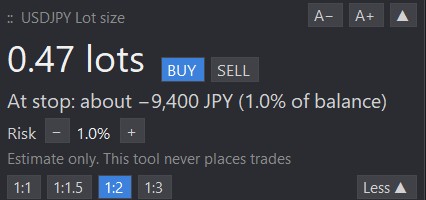
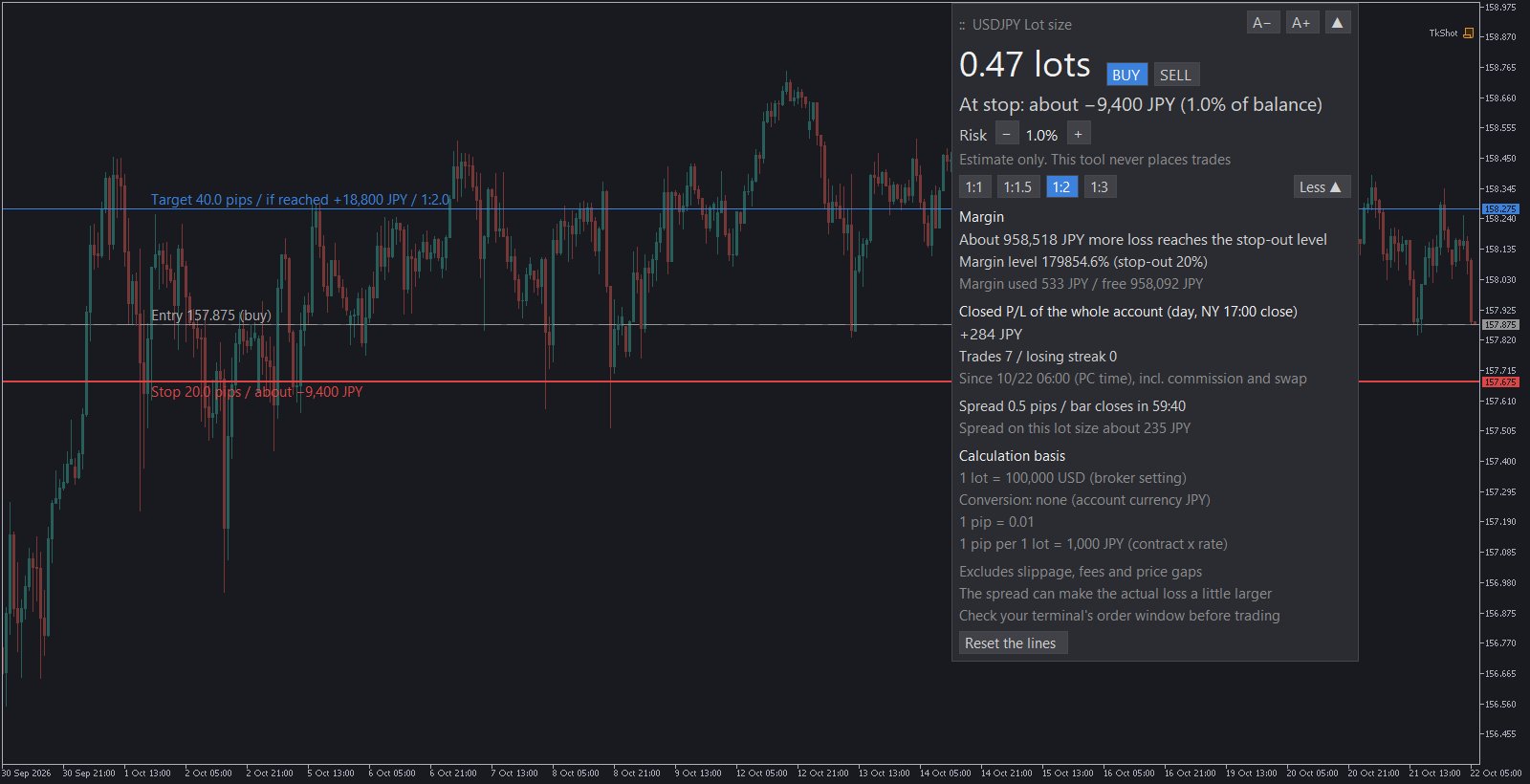
The panel in the corner of the chart shows the lot size in large type. You choose the amount you are willing to lose on one trade as a percentage of your balance (or equity). It starts at 1% (a sample value, not a recommendation). The [−] and [+] next to “Risk” change it from 0.25% to 10% (it turns red above 3%; the 3% is just where the color changes, not a recommended limit). “At stop: about …” is an estimate for a stop that fills exactly at its price.
Example on a demo account (large balance, so figures like margin level look extreme)
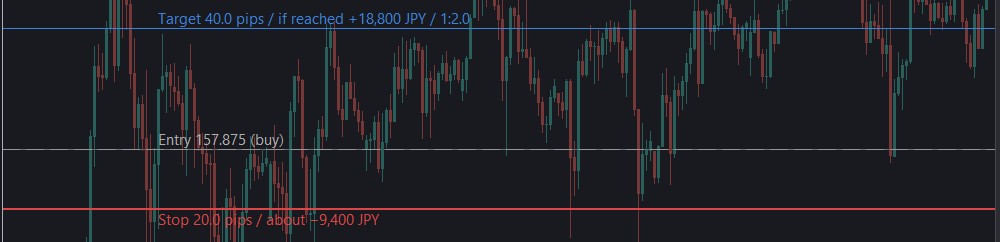
Lines (entry, stop, target) and risk-reward
The gray line is your entry and the red line is your stop loss. Drag the red line to your stop and the lot size appears. Buy or sell is detected from where the lines are. Press “1:1”, “1:2” and so on to show a blue target line and see the ratio to your stop. The lines are only drawings. No order is sent.
Example on a demo account (large balance, so figures like margin level look extreme)
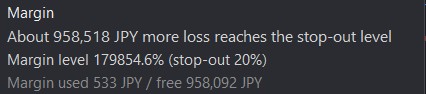
Margin and margin level (inside “More”)
Press “More ▼” on the panel. It shows your margin level, margin used and free margin, the approx. distance to stop-out, and the margin the current lot size would need. If you do not have enough, it tells you in red (the lot size is not reduced for you).
Example on a demo account (large balance, so figures like margin level look extreme)
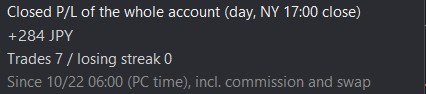
Period record with limits (inside “More”)
Pick a day, a week or a month to see the closed profit and loss, the number of trades and your current losing streak. At 80% of a loss limit or trade-count limit you set, it turns yellow; past the limit, red. The period can start at 5 p.m. New York time (the default), at midnight on your broker’s server clock, or at a custom hour that is fixed to Japan time (UTC+9).
Example on a demo account (large balance, so figures like margin level look extreme)
Spread and time left on the current candle (inside “More”)
Shows the current spread and the time left until the current candle closes. Display only; the lot size calculation does not change.
Example on a demo account (large balance, so figures like margin level look extreme)
Appearance and layout
Drag the “::” grip to move the panel, and use “▲” to fold it into a thin strip. You can also change the text size and how see-through the background is. The panel position and other choices are remembered the next time you add it. The panel always says “Estimate only. This tool never places trades”. The “Reset the lines” button is inside “More”.
Example on a demo account (large balance, so figures like margin level look extreme)
How to install
Download the file for your platform above (.ex5 for MT5, .ex4 for MT4). Downloaded files are usually in your Downloads folder.
In MT5 (or MT4), click File → Open Data Folder.
Copy the downloaded file and paste it into the folder MQL5 (MQL4 for MT4) → Indicators in the folder that opened.
Back in the platform, in the Navigator window, right-click Indicators (Custom Indicators in MT4) → Refresh. No restart needed. If you can’t see the Navigator, open it from View → Navigator.
Drag Tiltnote_Toolkit onto a chart. In the window that opens you can simply click OK. The panel and two lines (gray and red) appear. Move the red line to your stop and the lot size shows up.
If it does not appear, check: (1) the file type matches your platform (.ex5 for MT5, .ex4 for MT4; the name at the top of the window or Help → About tells you which you have), (2) the file is in the Indicators folder (not Experts or another folder), (3) you right-clicked in the Navigator and chose Refresh. To remove it, right-click the chart and open the list of indicators on the chart (Indicators List; Ctrl+I also opens it), then remove it there. You can check the numbers against your platform (a demo account works for this too).
Settings
You do not need to touch these at first. Just click OK and use it; read this section when you want to change something. To change them later, right-click the chart → the indicator list (Ctrl+I), select Tiltnote_Toolkit and click Edit.
Display
Language, panel corner, font size, margins, colors and how see-through the background is.
Lot size
Risk as a percent or a fixed amount, how far away the first stop line is placed, the size of 1 pip on gold, the units per lot, and more. The 1% to start is only a sample value, not a recommendation.
More
Choose what shows under “More”: margin and margin level, period record, and spread with the candle countdown.
Period record
The period, when it starts (5 p.m. New York, server midnight or a custom hour), which symbols to count, a loss limit and a trade-count limit (0 = off). Set limits according to your own rules.
Setting names and order may change between versions. Fields show an English name followed by the Japanese in brackets (for example, Language (言語)).
FAQ
Is the download free?
Yes. No sign-up and no email address. There is nothing to pay later.
Does it trade for me?
No. This indicator contains no order commands, and indicators cannot place orders in MetaTrader. It gives no buy or sell signals either. The BUY and SELL buttons on the panel only choose the direction of the calculation; they are not order buttons.
Does it work on the MT4/MT5 mobile app?
No. The MT4 and MT5 apps for phones and tablets can’t load custom indicators. Use it in MT4 or MT5 on a computer.
Why do the numbers differ between brokers?
The math uses values your broker sets: the contract size (1 lot), the value of a pip, leverage and margin rules, the server time and the spread. These vary by broker and account type, so the same inputs can give different answers.
How can I use the source code? What is the license?
The source (.mq5/.mq4) is under the MIT License (a permissive open-source license). You can read it, change it and share it, even commercially, as long as you keep the copyright notice and license text in the file. It comes with no warranty. Open it to check for yourself that there are no commands that place orders. You may see names starting with “Order” (such as OrderCalcProfit and OrderCalcMargin). They only calculate profit or margin, or read your history. They place no orders. If you change it, compile it (turn the source into a usable file) in MetaEditor.
Is it safe to install?
The .ex5/.ex4 files run only inside MetaTrader. They are not programs you install on Windows (.exe). They are compiled from the .mq5/.mq4 source on this page. If you prefer, download the source and compile it yourself in MetaEditor (press F7). You can also compare the SHA-256 checksums in the download section with your downloaded files. It runs with “Allow DLL imports” switched off.
Does it send any data?
No. It uses no DLLs and no WebRequest, so the indicator itself sends nothing over the internet.
Can I lose more than the amount shown?
Yes. The “At stop: about …” amount assumes your stop fills exactly at its price. In real trading, a stop can fill at a worse price (slippage, or a gap over the weekend or around big news). The spread and commissions apply. The conversion rate into your account currency can change. So the loss can be larger than the amount you set. On the other hand, lots are rounded down to the volume step, so the calculated loss is usually a little below your amount. Check your platform’s order window before you trade.
Other small details
If you set risk as a fixed amount, the [−] and [+] are not shown and the panel shows “Risk … (fixed amount in settings)”. A second copy on the same chart does nothing. While it runs, it temporarily changes the chart’s “Chart on foreground” setting, and mouse scrolling while you drag, so the panel stays readable, and restores them when you remove it. In MT4 it can only read the range loaded in the Account History tab; if that is too short, choose “All History”.
Which time zone does the custom hour use?
The custom hour is fixed to Japan time (UTC+9); it cannot be set to another time zone. 5 p.m. New York time is 7 a.m. in Japan (6 a.m. during US daylight saving time), which is 22:00 UTC (21:00 UTC during US daylight saving time); the switch is handled automatically.
The numbers are estimates calculated from what you enter and your broker’s values. Real results can differ because of price gaps, slippage, the spread, commissions and swaps, and you can lose more than the amount you set. Check your platform’s order window before you trade. The tool is free and comes with no warranty (MIT License). Whether and how much to trade is your own decision. This tool is not investment advice.
To contact the author or send feedback, see the contact page.
Tiltnote is a journal app where you log, for each trade, whether you kept your rules and how you felt. It can also help you look back on days you went past your limit. See the app →