Four main areas of the screen
Trading apps differ by broker. This lesson uses MT5 as the example. On MT5 for desktop, there are four main areas to know first.[1]
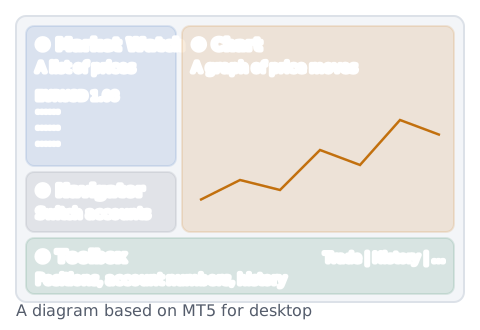
- Market Watch: a list of prices for currency pairs and other instruments.[1]
- Navigator: where you switch accounts and use features such as indicators.[1]
- Chart: a graph of price moves. You can view it in 21 timeframes, from one minute to one month.[1] How to read it is in the lesson on how to read candlesticks.
- Toolbox: where you see your open positions, account numbers, trade history and more.[1]
The two prices in Market Watch
Market Watch shows two prices for each currency pair: Bid and Ask.[3] Bid is the price you can sell at, and Ask is the price you can buy at.[4]
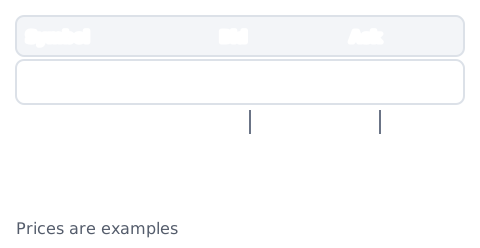
The gap between the two is the spread.[3][4] If the labels on your screen confuse you, remember: the lower price is the one you sell at, the higher one the one you buy at.[4] These are the same two prices you saw in lesson 1, what is forex.
What you set in the order window
To place a new order, you open the order window and set the following.[2]
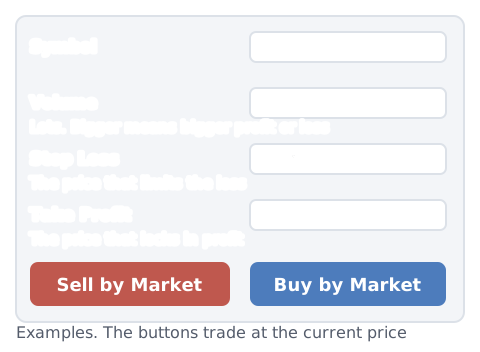
- Volume: the size of the trade, in lots. The bigger the volume, the bigger the profit or loss when the price moves.[2] How size and profit or loss relate is in the lesson on how to calculate forex profit and loss.
- Stop Loss: a price you set to limit the position's loss.[2]
- Take Profit: a price you set to lock in the position's profit.[2]
- For now, it is enough to know the names and what each field is for.
Pressing "Sell by Market" or "Buy by Market" sends an order at the broker's current price.[2] Pressing it really starts a trade, so it helps to try the buttons first in a practice account and see what each one does. Why a stop loss may not fill at the price you set is covered in price gaps, and the types of orders in limit vs stop orders.
Reading the account numbers
The Trade tab in the Toolbox shows your account numbers.[2] There are five, but for now it is enough to know the difference between balance and equity. Later lessons cover the other three in more detail.
While a position is open, a loss that is not yet final is called an open loss (or floating loss), and a profit that is not yet final an open profit. The example below is a 100,000 account with an open loss of 6,000 on its current position.
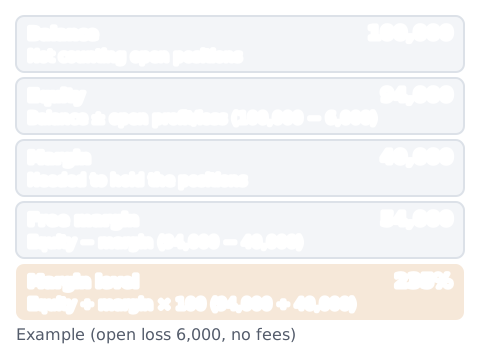
- Balance: the money in the account, not counting your open positions' results.[2]
- Equity: the balance plus or minus your open positions' profit or loss.[2] Roughly, it is how much would be left if you closed everything now (fees and similar items, if any, also come off).
- Margin: the money required to hold your open positions and pending orders (orders not yet filled).[2]
- Free margin: the money you can use to open positions, calculated as equity − margin.[2]
- Margin level: equity ÷ margin × 100.[2]
If you look only at the balance, it does not change even when your positions are losing a lot. To see where the account stands now, look at equity and margin level too. If the margin level falls below the level your broker sets, positions can be closed automatically (what is a stop out). The lesson on margin, equity, free margin and margin level explains this in more detail.
On a phone, switch between screens
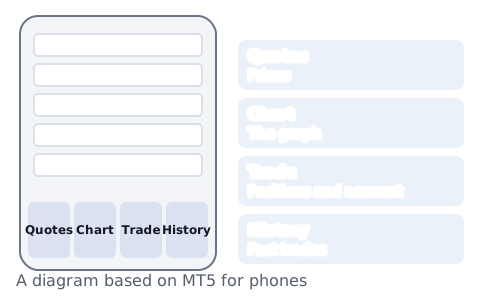
The MT5 phone app (iPhone and Android) has screens such as Quotes, Chart, Trade and History that you switch between.[5][7] Your account numbers are on the Trade screen,[5][6] and finished trades are on the History screen.[8]
Things to check on your own screen
- Different names: the same item can have a different name depending on the app and the language setting. If unsure, check your app's help.
- Account type: whether you are in a practice account or a real-money account. You can check at the top of the screen or in the account list.
- Account currency: which currency your balance and profit or loss are shown in.
To check the numbers on your own screen, try the margin calculator (how much margin a position needs) and the profit and loss calculator.
How to look back over finished trades is in how to export and review your MT4/MT5 trade history. How you trade is your decision; this article does not make it.
Sources
- MetaQuotes. User Interface - Getting Started - MetaTrader 5 Help. https://www.metatrader5.com/en/terminal/help/startworking/interface
- MetaQuotes. Executing Trades - Trading Operations - MetaTrader 5 Help. https://www.metatrader5.com/en/terminal/help/trading/performing_deals
- MetaQuotes. Market Watch - Trading Operations - MetaTrader 5 Help. https://www.metatrader5.com/en/terminal/help/trading/market_watch
- National Futures Association (US futures industry self-regulatory organization). (2004). Trading in the Retail Off-Exchange Foreign Currency Market: What Investors Need to Know (PDF pp. 4, 10). Copy hosted by Nasdaq: https://www.nasdaqtrader.com/content/phlxwco/forex.pdf
- MetaQuotes. MetaTrader 5 iPhone/iPad Help. https://www.metatrader5.com/en/mobile-trading/iphone/help
- MetaQuotes. Trade - MetaTrader 5 for iPhone. https://www.metatrader5.com/en/mobile-trading/iphone/help/trade
- MetaQuotes. MetaTrader 5 for Android – User Guide. https://www.metatrader5.com/en/mobile-trading/android/help
- MetaQuotes. History - MetaTrader 5 for iPhone. https://www.metatrader5.com/en/mobile-trading/iphone/help/history