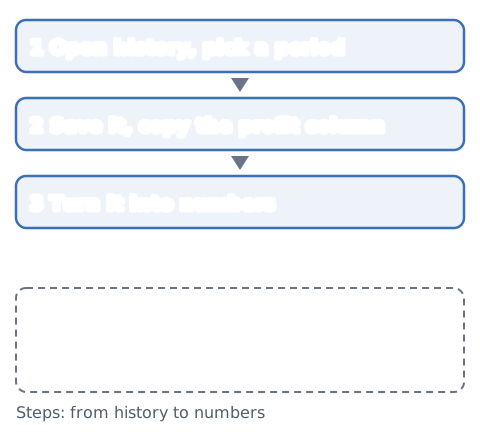
MT5: the History tab
- Choose a view: the history can be shown as a list of positions, orders or deals, or as a tree.[1] To see one trade per row, the Positions view is easiest (in the Deals view, each trade is split into an entry row and an exit row)
- Choose a period: if your history is long, or you want a certain time span, you can select a period.[1]
- Save it: right-click the history and choose "Report".[2] The report can be saved as HTML or PDF[3], and saved as a file to look at in other software.[1]
The MT5 report also lists figures such as gross profit, gross loss, profit factor and maximum consecutive losses.[2]
MT4: the Account History tab
- Choose a period: right-click the Account History tab and choose "All History", "Last 3 Months", "Last Month" or "Custom Period".[4]
- Save it: "Save as Report" saves the history as an HTML file. "Save as Detailed Report" adds an extra set of figures.[4]
- Columns: order, time, type, size, symbol, price, stop loss, take profit, close time and price, commission, taxes, swap, profit and comments.[4]
Menu names can differ slightly by MT4/MT5 version and language setting. These steps are for the desktop version. The mobile apps also show your history, but may not let you save a report; you can type the profit figures into the tool by hand instead.
Turn the profit column into numbers
Open the saved report in a browser or spreadsheet, select the profit column and copy it. Paste it into the trading stats calculator to get win rate, average win and loss, expectancy, profit factor, max drawdown and the longest losing streak. Everything is calculated on your device. If you use other trading software, you can do the same as long as you can copy the profit column.
- Commission and swap: if they are in separate columns, adding them to profit gets you closer to your real result (the tool lets you choose how many numbers to add)
- Deposits and withdrawals: these are not trading results, so leave them out (the tool skips those lines)
- Number of trades: with fewer than 30 trades, the numbers can swing a lot. Treat them as a rough guide
To turn a saved report into the format Tiltnote’s bulk import expects (date, time, symbol, side, lots, profit), the free MT4/MT5 history to CSV converter does it on your device.
You can also put the saved history into the Tiltnote trading journal app as past records, all at once. How to convert it and import it is in How to bulk-import your past trades into Tiltnote with a CSV.
Add what the history leaves out
MT4/MT5 history records what happened: prices, sizes and profit or loss. It does not record why you entered, how you felt at the time, or whether you kept your rules.
If you add columns like these to your journal for each trade, you can look at them next to the numbers from your history (these are our own examples):
- Strategy name: which setup you entered on
- Mood: rushed, wanting to win it back, calm, and so on
- Rules kept: yes or no
For what to write, see what to write in a trading journal, and for a monthly look back, see a monthly trading review. This article does not decide how you should trade.
Sources
- MetaQuotes. Executing Trades (Trading history) — MetaTrader 5 Help. https://www.metatrader5.com/en/terminal/help/trading/performing_deals
- MetaQuotes. Trading Report (For Advanced Users) — MetaTrader 5 Help. https://www.metatrader5.com/en/terminal/help/trading_advanced/history_report
- MetaQuotes. Trading Report — MetaTrader 5 Help. https://www.metatrader5.com/en/terminal/help/trading/report
- MetaQuotes. Account History — MetaTrader 4 Help. https://www.metatrader4.com/en/trading-platform/help/overview/terminal/terminal_account_history